Reconstruction
Tomographic reconstruction transforms a tilt series into a reconstructed volume. It is the most computationally intensive step. We recommend that you save your work often, and consider downsampling the dataset in order to preview results rapidly.
A number of reconstruction techniques are available in Tomviz under the
Tomography > Reconstruction submenu:
Simple Back Projection (C++)
Weighted Back Projection
Direct Fourier Method
Constraint-based Direct Fourier Method
Algebraic Reconstruction Technique (ART)
Simultaneous Iterative Recon. Technique (SIRT)
TV Minimization Method
TomoPy Reconstruction
Most of the reconstruction techniques have been developed in Python, with the simple back projection being the exception (developed in C++ for rapid feedback). They serve as a good starting point to develop new algorithms, or inspect the implementation of the reconstruction techniques.
Pre-reconstruction pipeline
A typical pre-reconstruction pipeline includes loading a tilt series, setting tilt angles, performing image alignment (e.g. PyStackReg), and centering the rotation axis (e.g. Tilt Axis Shift Alignment). These steps are discussed in the alignment section.
Weighted Back Projection
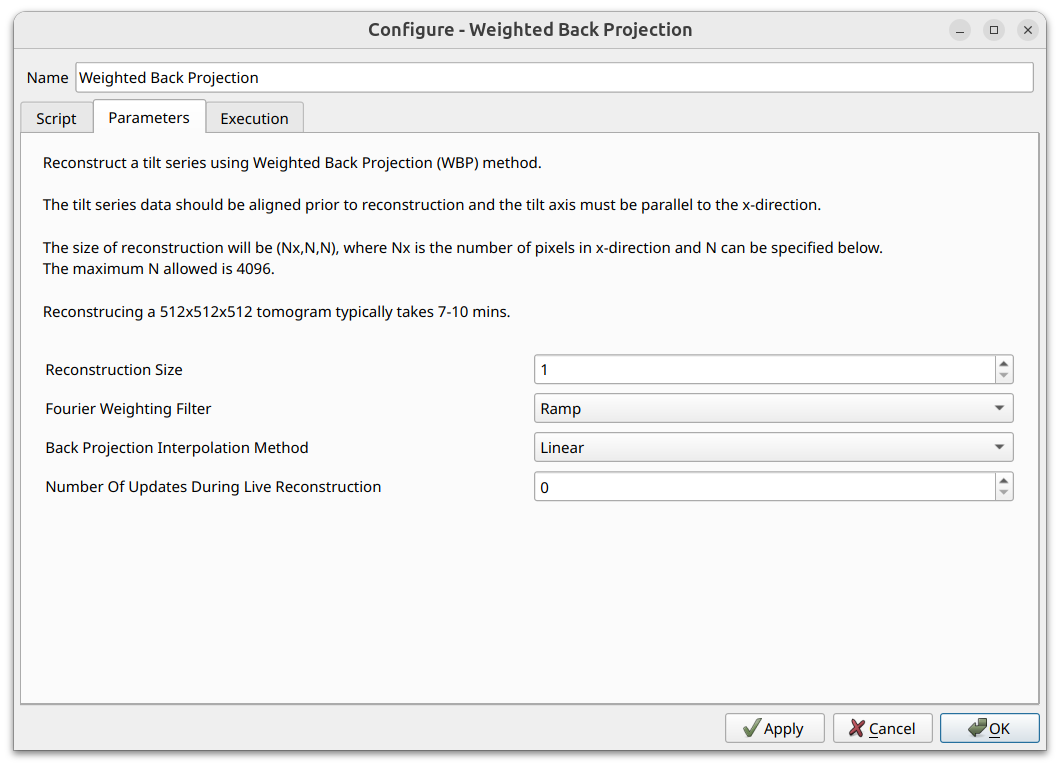
A simple and relatively fast reconstruction technique is the weighted back
projection technique. It has a number of parameters that can be specified, along
with the number of updates during reconstruction if you would like to preview
the reconstruction as it proceeds. Once ready to run click on OK.
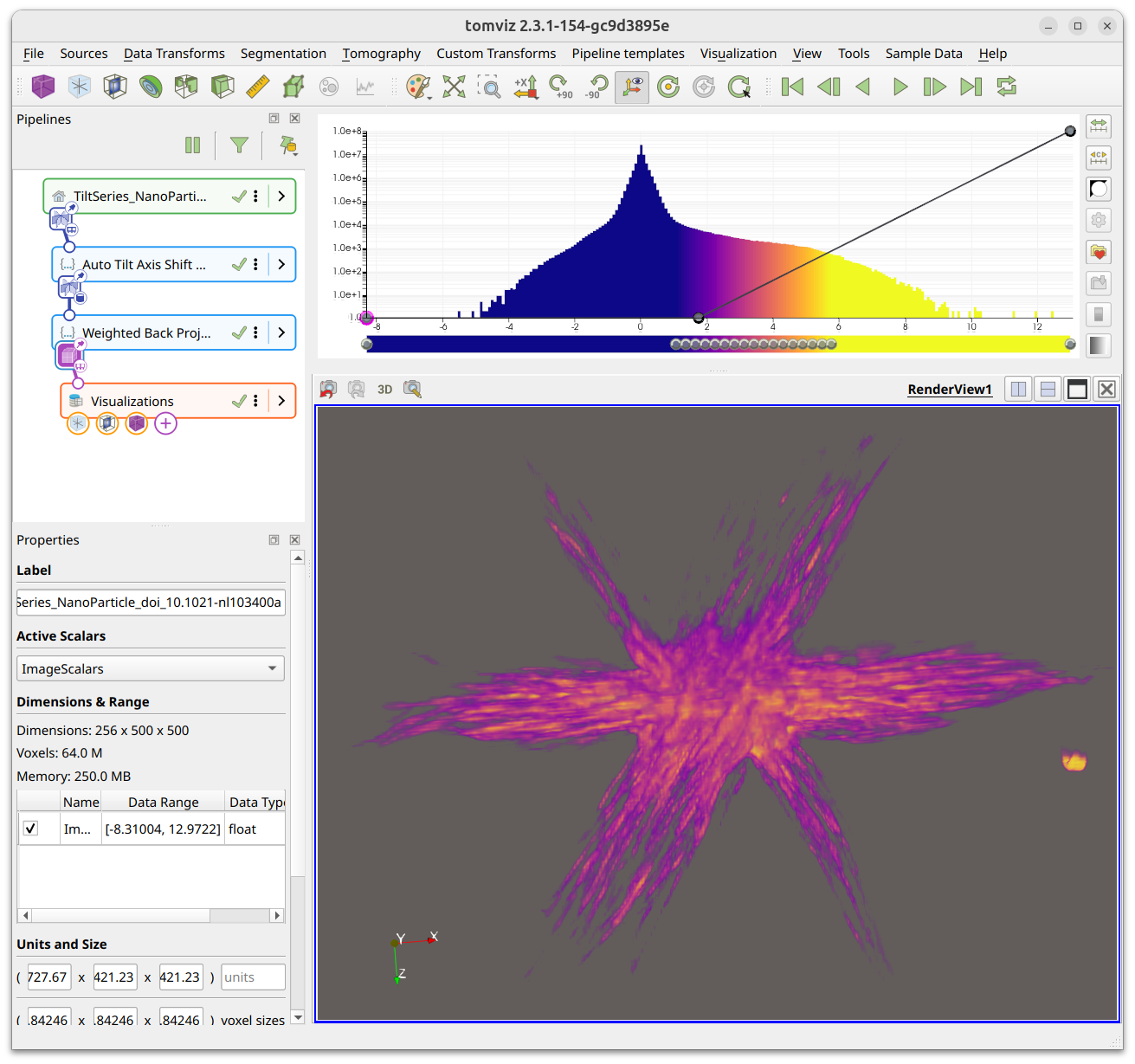
A typical reconstruction of the sample tilt series is shown below. The pipeline shows the source, alignment transforms, and reconstruction transform with its output volume.
Save the reconstruction data
The reconstructed data is shown as a child output in the pipeline. In
order to save the result, select the reconstruction output node in the pipeline,
then click Save Data in the File menu.
TomoPy
Reconstructions may be performed using TomoPy. The TomoPy reconstruction transform supports multiple algorithms:
gridrec - A fast, Fourier-based reconstruction algorithm (default). Best for quick reconstructions with good quality.
fbp - Filtered back projection. A standard analytical reconstruction method.
sirt - Simultaneous Iterative Reconstruction Technique. An iterative method that converges to a solution by simultaneously updating all voxels.
art - Algebraic Reconstruction Technique. An iterative method that updates voxels one ray at a time.
tv - Total Variation minimization. An iterative method with regularization that promotes piecewise-smooth reconstructions. Useful for data with limited projections.
mlem - Maximum Likelihood Expectation Maximization. An iterative method that can produce higher quality results for noisy data.
ospml_hybrid - Ordered Subset Penalized Maximum Likelihood with hybrid penalty. An iterative method with regularization.
Parameters
Algorithm - Select the reconstruction algorithm from the dropdown.
Number of Iterations - Controls how many iterations to perform (1–1000, default 5). Only applicable to iterative methods (sirt, art, tv, mlem, ospml_hybrid).
Regularization - Controls the regularization strength (0.0001–10.0, default 0.1). Only applicable to the TV method.
Use GPU (CUDA) - Enable GPU acceleration for faster reconstruction. Only available for SIRT and MLEM algorithms, and requires a CUDA-capable GPU.
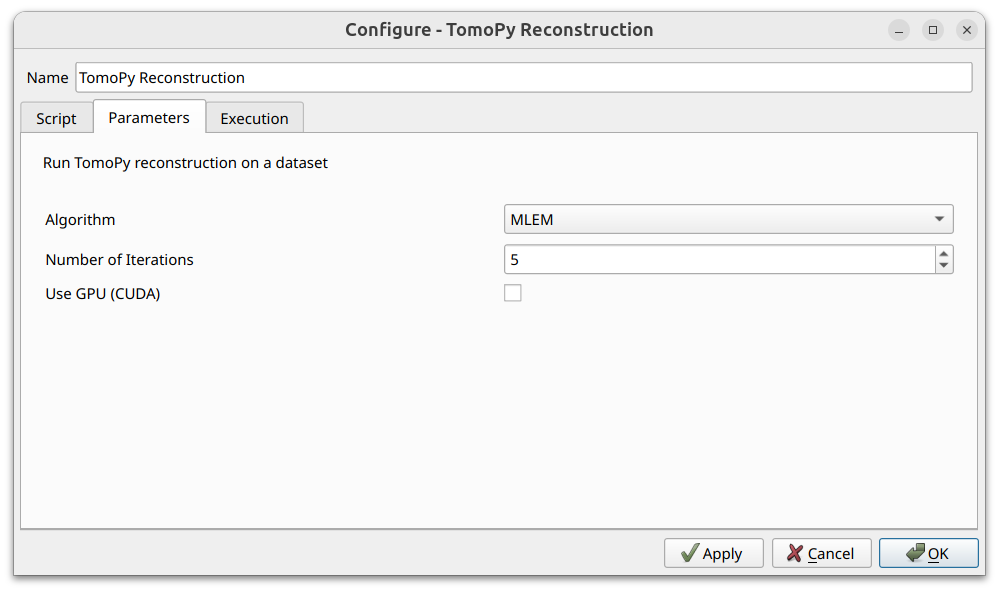
To use TomoPy reconstruction, select Tomography > Reconstruction >
TomoPy Reconstruction from the menu. Select the desired algorithm and set
parameters. The reconstruction will automatically:
Normalize the data to the [0, 1] range
Compute the rotation center from the data dimensions
Run the selected TomoPy algorithm
Apply a circular mask (ratio 0.95) to the result
Create a child dataset with the reconstructed volume
Shift Rotation Center
The Shift Rotation Center tool helps determine the optimal rotation center for tomographic reconstruction. It generates a set of reconstructions from a single slice using a range of test rotation centers, allowing you to visually identify which center produces the best reconstruction.
Applying the operator then shifts the data so that the center of rotation is at the center of the image.
This tool is accessible from Tomography > Alignment >
Shift Rotation Center (Manual).
How It Works
The tool reconstructs a single slice of your data using multiple different rotation center values. The results are presented side-by-side so you can compare them and identify the rotation center that produces the sharpest, most artifact-free reconstruction.
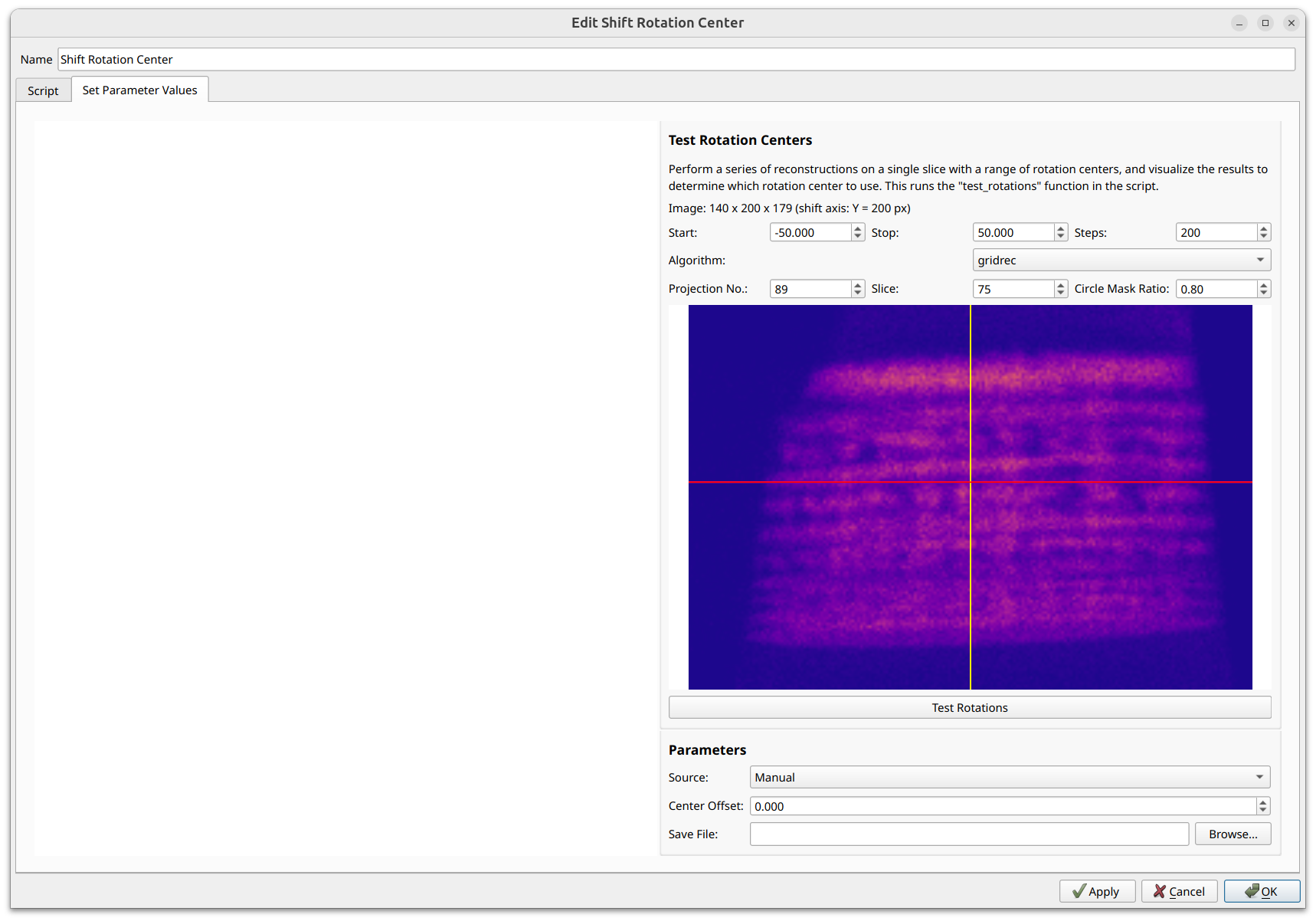
The “Projection No.” may be edited to view a different projection. The red line represents the “Slice” parameter - the plane of the test reconstructions. The yellow line represents the current shift in the rotation axis center, in fractional pixels.
Clicking the “Test Rotations” button generates the preview reconstructions at the various rotation centers defined by the “Start”, “Stop”, and “Step” parameters.
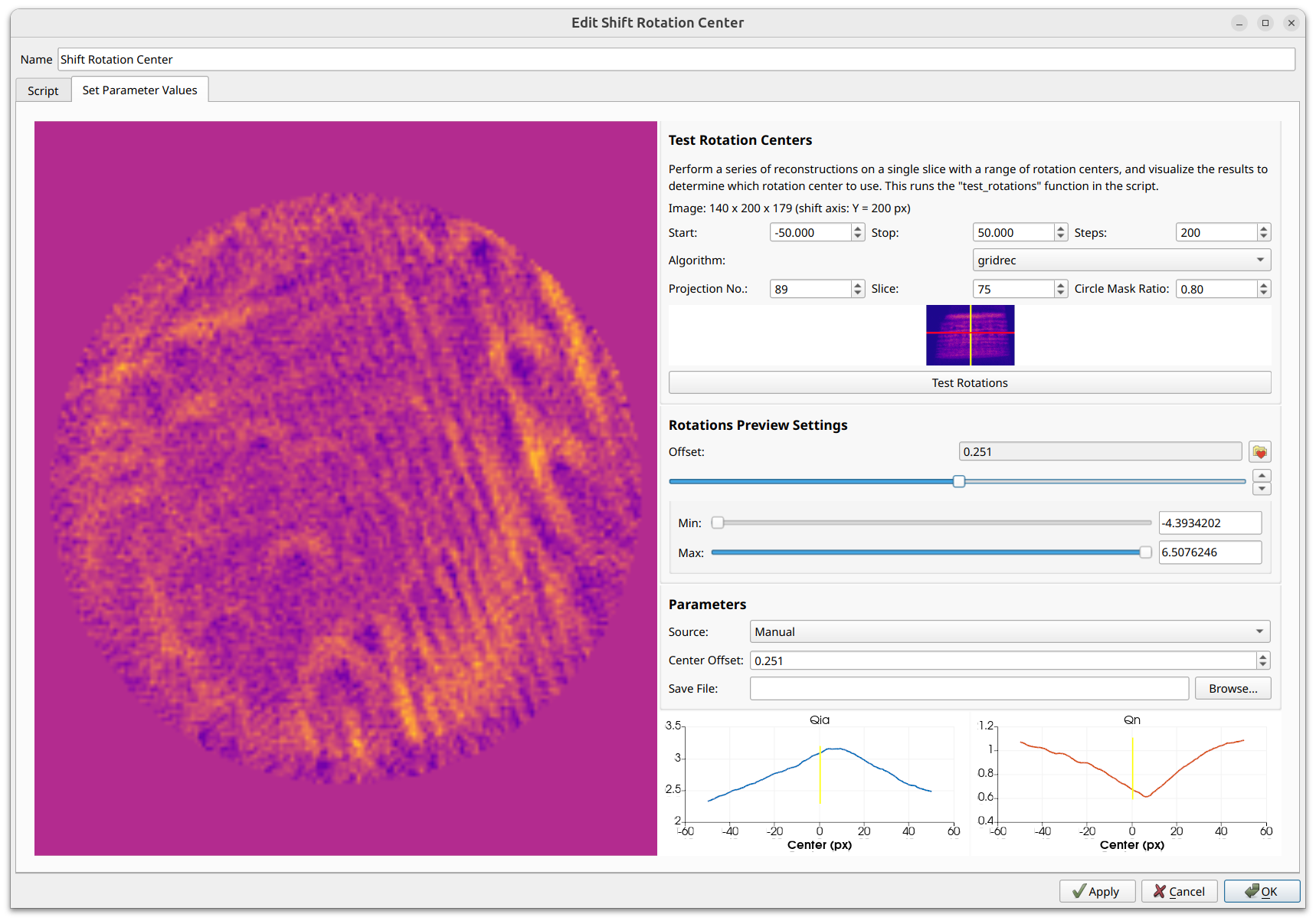
Adjusting the slider interactively updates the preview reconstruction, and allows you to interactively determine which rotation center produces the highest quality reconstruction. For this example, sliding the value to the correct center yields the following preview image:
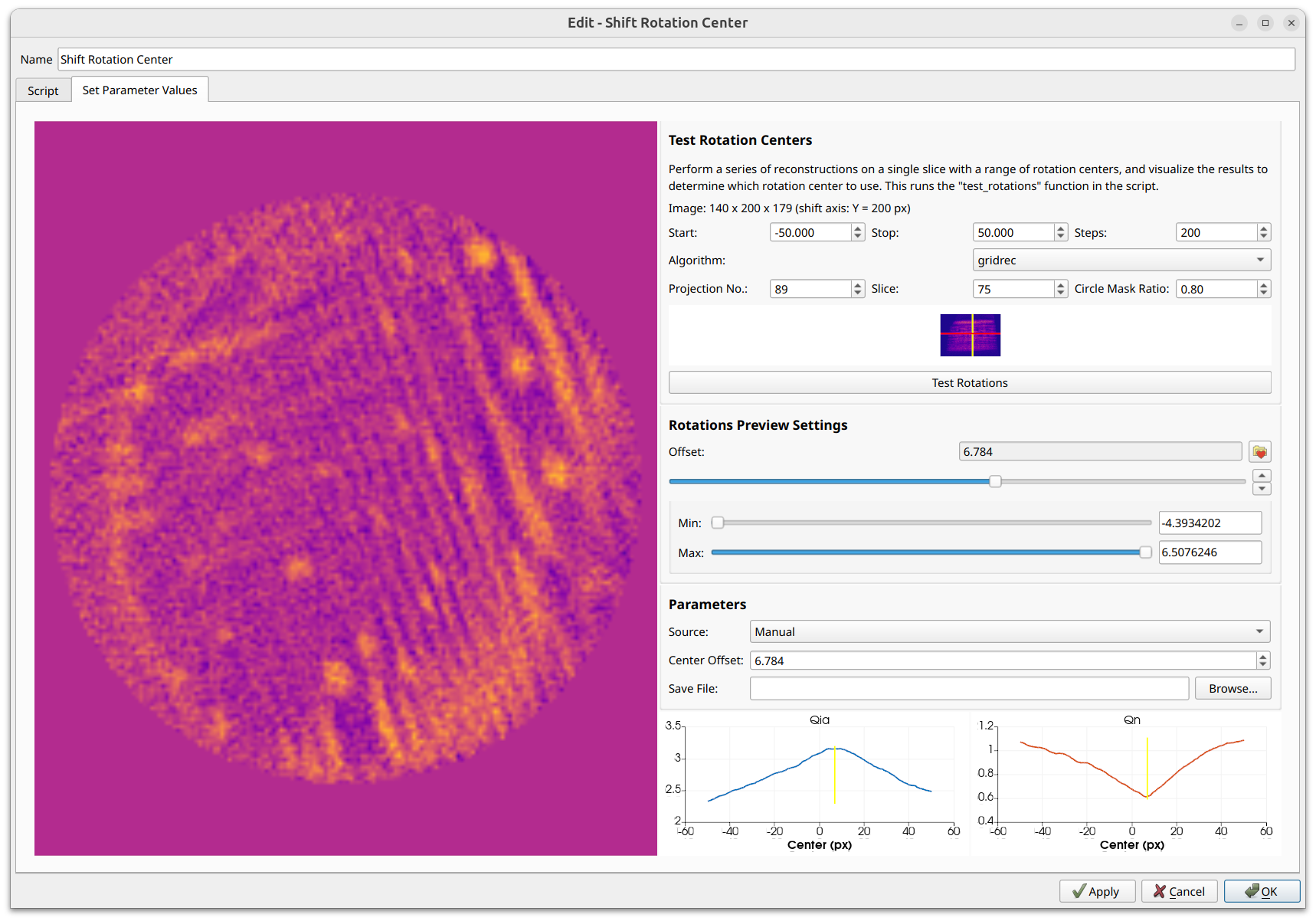
Once the correct rotation center has been discovered, applying the operator will shift the images so that the rotation center is now at the center of the images.
Quality Metrics
In addition to visual inspection, the tool computes two quality metrics from Donath et al. (2006) to help quantify reconstruction quality at each candidate rotation center:
QiA (Integral of Absolute Value) - Measures the sharpness of the reconstruction by summing the absolute values of all pixel intensities. When the rotation center is correct, the reconstruction focuses signal properly into sharp features with high absolute intensities. An incorrect center smears the signal, reducing the total absolute intensity. The optimal rotation center maximizes QiA.
QN (Integral of Negativity) - Measures the total amount of negative pixel intensity in the reconstruction. The reconstructed quantity (e.g., attenuation coefficient) is inherently non-negative, so negative values in a reconstruction indicate artifacts from an incorrect rotation center. The optimal rotation center minimizes QN (i.e., has the least amount of negative intensity). Note that QN is only meaningful for non-iterative algorithms (gridrec, fbp) that can produce negative values. It is automatically hidden when iterative algorithms are selected, since those enforce non-negativity constraints.
Both metrics are plotted as line charts alongside the reconstruction previews, with the X-axis showing the rotation center offset. A vertical indicator line marks the currently selected center, helping you identify the optimal value both visually and numerically.
Saving and Loading Parameters
Parameters can be saved to and loaded from NPZ files. This is useful for interoperability with other alignment workflows, allowing you to reuse rotation center parameters across different datasets or tools. The NPZ files take into account pixel size, so they can be applied to datasets with a different shape (for example, taking the shift from an XRF dataset and applying the same shift to a ptychography dataset).
Advanced reconstruction techniques
Most of the reconstruction techniques are developed in Python. You can inspect the code in the application and modify the approach if needed to improve your results. Any custom Python code will be saved in a state file. Tomviz offers a number of ready to use algorithms, and is designed so that you can add more. Experiment in the local application and consider contributing new algorithms to our codebase.