Pipeline Management
Tomviz provides a flexible data processing pipeline where operators are applied sequentially to your data. This section covers features for managing and controlling the pipeline execution.
Pipeline Breakpoints
Breakpoints allow you to pause pipeline execution at any operator, enabling step-by-step inspection of intermediate results. This is useful for debugging complex pipelines or examining how each operator transforms the data.
Setting a Breakpoint
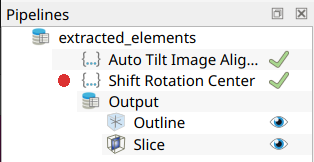
To set a breakpoint on an operator, hover your mouse to the left of the operator in the pipeline view. A faded red circle will appear. Left-click it to set the breakpoint. The circle will become solid, indicating that the pipeline will pause before executing that operator.
Running with Breakpoints
When a pipeline is executed and encounters a breakpoint, execution pauses at
that point. You can inspect the data as it exists after all preceding operators
have run. While paused, you can adjust parameters on operators before the
breakpoint and re-run until the intermediate result looks correct. To resume
execution past the breakpoint, click the green Play button in the pipeline
view, located where the breakpoint icon was initially displayed.
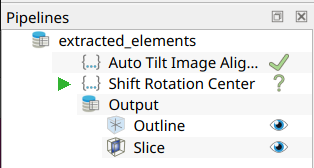
The breakpoint is not removed automatically after clicking Play. The red
circle will re-appear in the same spot, where you may optionally then
remove it.
Removing a Breakpoint
To remove a breakpoint, left-click the solid red circle next to the operator. The breakpoint will be removed, and the next time the pipeline is executed, it will proceed through that operator without pausing.
Inserting Operators
By default, new operators are appended to the end of the pipeline. However, you can also insert an operator before any existing operator in the pipeline.
Inserting Before an Operator
To insert a new operator before an existing one, first select the operator in the pipeline view that you want to insert before. Then, when you add a new operator from any of the menus (Data Transforms, Tomography, Segmentation, etc.), it will be inserted before the selected operator rather than appended at the end.
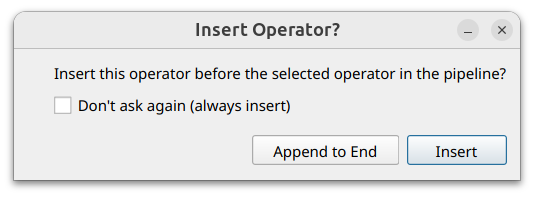
A confirmation dialog will appear asking you to verify the insertion. This dialog includes a “Don’t ask again” option if you prefer to skip the confirmation in the future.
Use Cases
Inserting operators is useful when you realize you need an additional preprocessing step in the middle of an existing pipeline, or when you want to experiment with different operator orderings without having to rebuild the entire pipeline from scratch.